

TouchScreen Lite
Convert any Display/Surface into TOUCH SCREEN without additional hardware.
Panchangam
TouchScreen Lite is developed and provided by Panchangam. LDPlayer offers the download service only.
Rating4
CategoryTools
Package namecom.myapp.touchscreen.lite
Downloads100+
TouchScreen Lite Description
Requires Android 9 and above.
NO SOFTWARE installation required in Computer/Laptop.
THIS LITE VERSION ONLY SUPPORTS 'SINGLE CLICK'. If this version works fine in your device, then can buy 'TOUCHSCREEN Pro' for Single click/ Double click/ Drag N Drop/ Drawing
After installing this app into your smartphone, pair it with your computer. Go ahead and use your computer display/Connected big screen/Projected into wall into a Touch screen. You can select any point in your display with your finger touch.
This application uses HID Bluetooth protocol and is independent of the Target Operating system, hence it can be used with all the OS.
Steps for installation and use:
* Before installation and use, unpair your Phone with computer, if they are already paired. In Phone, go to 'Connections-> Bluetooth'. In the list of paired devices, remove your computer, it is is paired. In computer open 'Bluetooth' and remove your phone if it shows as paired. Turn ON Bluetooth in both Phone and Computer.
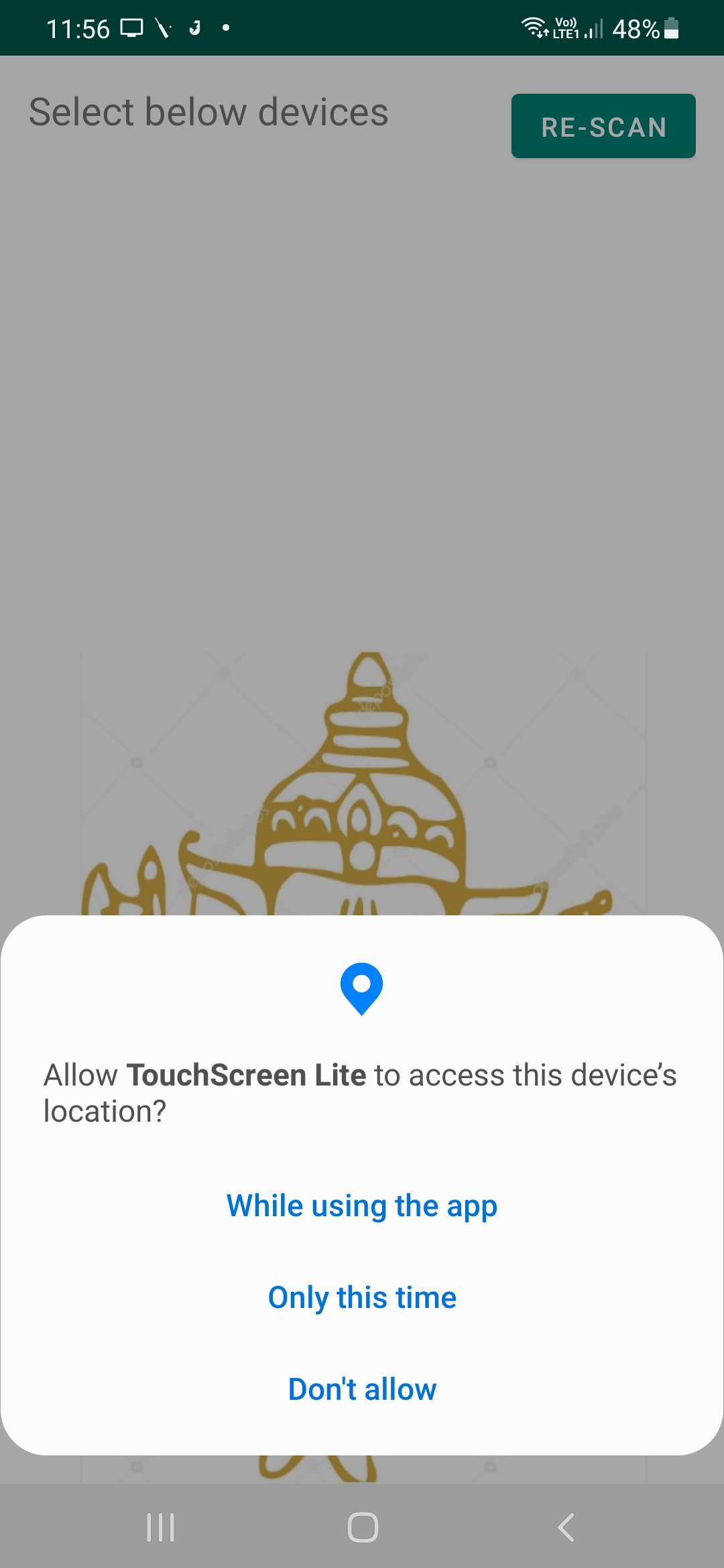
*Upon installation, need to give permissions 'Location Permission' and 'Camera Permission'. Some devices prompt for permission automatically. In others, Long press the app, which opens 'App Info', where Permissions are listed. Grant above 2 permissions.
*Select "Re-Scan' to search for visible devices. Will take few second to list all devices. Upon connection, will open the Camera View(camera permission prompt).
* Place device to your left hand side, on a stable platform. In vertical position with Front camera facing your display, 30-60 degree to display plane. This position should not be altered in your session. If it is altered, need to repeat SETUP(Auto/Manual) discussed below.
*AUTO SETUP: Move your computer to Desktop screen, minimizing all the windows. There are shortcut for various OS. For WINDOWS- (WIN + D), LINUX-(Ctrl + Alt + D), MAC-(Fn + F11). Select 'Auto Setup' , where multiple Right-Click menus will appear. Stay back and relax. Audio prompt will come after successful setup. Now Touch and hold your index finger on any point in your display for more than a second. Mouse cursor will move to that location.
Can avoid failures in this step by removing icons in your desktop.
*MANUAL SETUP: Always go for Auto setup first, if it fails or need more accuracy, attempt Manual Setup. Minimize all windows and keep in Desktop window. Select 'Manual Setup' button on top. Mouse cursor will move near Top-Left corner of display. Touch on the cursor position for 2 seconds. Then cursor moves near Top-Right corner. Place finger on it for 2 seconds. Then it moves to Bottom-Right and Bottom-Left. Repeat the step until four corners are identified. Now touch any point to click.
*EASY POSE: Set of gestures which is natural and easy. Palm is facing ground and extend Index finger(other fingers are either closed or open, better results if closed). Place on a point for one second to register a single click, will hear beep sound. For double click, extend both Middle and Index finger, Index finger placed over Middle finger, and hold for 1 second. For Drag 'N' Drop, touch on a point and bend your Index finger to trigger MOUSE DOW(initiate Drag), now move hand to Drag. Straighten Index finger to Drop(MOUSE-UP)
*GUN POSE: GUN pose is more reliable and accurate than EASY pose. If EASY is not working, you can switch to GUN any time and vice versa. For Single click, Palm vertical and facing to your left. All finger closed, Index and Thumb extended like 'L', like displaying GUN towards display, holding for 1 second. For Double Click, additionally extend Middle finger. Fold Thumb for initiating Drag(MOUSE-DOWN). Extend Thumb for drop(MOUSE-UP).
Refer attached YouTube video for a better understanding.
Open up



Currently, TouchScreen Lite APK download is not available. Please proceed to download from the Google Play Store.
Get from Play Store
1. Click "Get from Play Store
2. Download TouchScreen Lite from the Play Store
3. Launch and enjoy TouchScreen Lite
Is TouchScreen Lite safe for my device?
Open up
Yes, TouchScreen Lite follows the Google Play content guidelines to ensure safe use on your Android device.
What is an XAPK file, and what should I do if the TouchScreen Lite I downloaded is an XAPK file?
Open up
A file with .xapk extension is a compressed package file. It is a container file format that incorporates APK and additional associated files required for the installation.
The XAPK format was introduced to package the APK file and OBB file together for a seamless delivery and installation process.
XAPK format can help reduce the package size of application.
On mobile phones, users need to install the XAPK installer first, and then install XAPK files through that installer. You can find the installer here:https://apkcombo.com/how-to-install/. But on PC client, you just need to put the file on LDPlayer.
Can I play TouchScreen Lite on my computer?
Open up
Yes, you can play TouchScreen Lite on your computer by installing LDPlayer, an Android emulator. After installing LDPlayer, simply drag and drop the downloaded APK file into the emulator to start playing TouchScreen Lite on PC. Alternatively, you can open the emulator, search for the game or app you want to play, and install it from there.


